Mouse, trackpad or trackball: what to use for design work
A practical comparison of mice, trackpads and trackballs for design work, with the tasks each one suits and specific models and prices to compare.
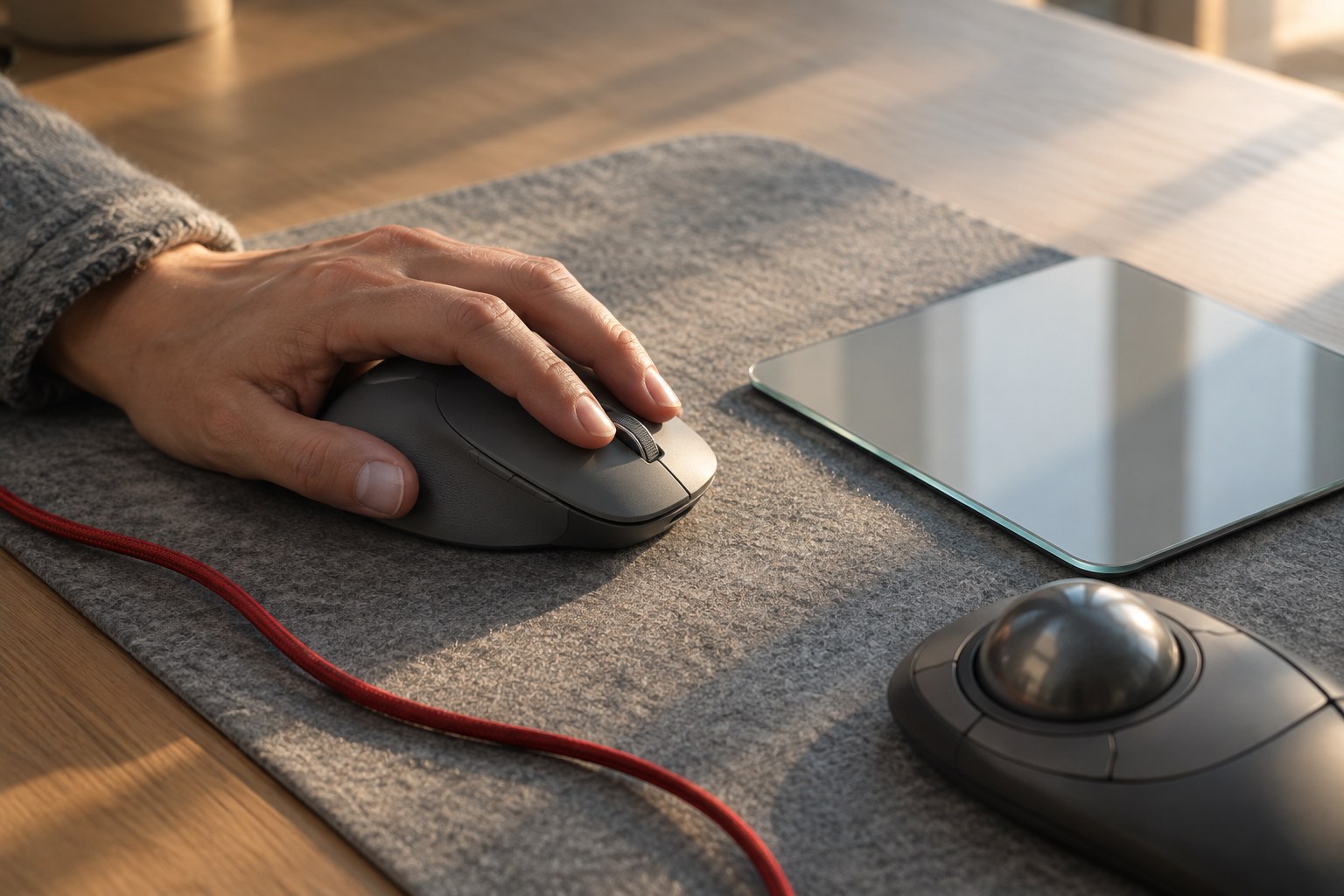
Designers spend a lot of money on monitors and laptops, then use whichever pointing device came with the desk. Yet you touch that device for most of the working day. It affects how quickly you zoom around a Figma file, how accurately you nudge a bezier handle, and how your hand feels by the end of the week.
There is no single best option, because each type is good at different things. This guide compares mice, trackpads and trackballs by the work they suit, with specific models to look at. Prices below come from the sources linked and can change, so check them before you buy.
What design work asks of a pointing device
Before you compare products, look at how you actually work. Most design tasks fall into a few groups, and they ask for different strengths:
- Navigating: panning and zooming across a large canvas, which is common in Figma and Framer.
- Precision: placing points, drawing vectors or retouching small areas.
- Repetition: the same commands many times, such as duplicating, aligning and nudging.
- Long sessions: hours of use, when comfort matters more than any single feature.
Spend a day noticing which of these takes most of your time. That answer should carry more weight than any review.
A mouse: the all-rounder
A good mouse handles precision well, and it is familiar to almost everyone, so there is nothing new to learn. Extra buttons and a side scroll wheel can also take care of a lot of repetitive work.
The Logitech MX Master 4 is the obvious one to look at. Macworld's review lists it at $119.99, with an 8,000dpi sensor, two scroll wheels, lots of programmable buttons and around 70 days of battery life. A new haptic panel under the thumb gives a brief click sensation, and an on-screen Actions Ring gives you a menu of customisable commands. Macworld also reports that Logitech worked with Adobe on haptic support in Photoshop and Lightroom.
There are limits to keep in mind. It is right-handed only, and the review notes that few apps support the haptics so far, so we would not buy it for that feature alone. The standard version includes a USB-C wireless receiver, but the Mac edition does not.
A trackpad: best for moving around the canvas
Pinch to zoom and two-finger panning are hard to beat for moving around a large file. If your day involves reviewing flows and jumping between frames, a trackpad can feel faster than a mouse, and there is less to think about.
The Apple Magic Trackpad with USB-C was listed at $129.99 at Best Buy when we checked. It makes the most sense if you already use a Mac and like its gestures.
The weakness is fine control. Dragging small handles or drawing careful vector paths is harder with a fingertip, and long drags may need more than one swipe. Many designers fix that by using a trackpad in one hand and a mouse in the other, which works better than it sounds.
A trackball: less arm movement
With a trackball, the device stays still and your fingers or thumb move the ball. That means you need less desk space and less arm movement, which is why some people switch to one for comfort. There is a learning curve, so give it a couple of weeks before you judge it.
There are two main styles:
- Thumb-operated: this feels closer to a normal mouse. The Logitech MX Ergo S has a 20-degree tilt, a 2048dpi sensor, USB-C charging and up to 120 days on a full charge. One reseller listed it at about $70, but prices vary, so compare a few stores.
- Finger-operated: a larger ball sits under your fingers. Kensington lists its ambidextrous Expert Mouse Wireless Trackball at $109.99, with four customisable buttons and a scroll ring. Its Orbit Wireless Trackball with Scroll Ring is also ambidextrous, at $49.99.
The cheaper Kensington is a low-risk way to find out if you like the format. Both Kensington models have far fewer buttons than the MX Master 4, so you may rely more on keyboard shortcuts.
How they compare for common tasks
Here is how we would match each type to the work:
- UI design in Figma or Framer: a mouse, or a trackpad and mouse together.
- Reviewing and presenting: a trackpad, for smooth zooming and panning.
- Vector work and retouching: a mouse is fine, but if you do this all day, consider a pen tablet.
- Small desks or travel setups: a trackball, as it does not need room to move.
- Left-handed use: an ambidextrous trackball or a trackpad, since the MX Master 4 will not suit you.
Set it up before you judge it
A new device can feel wrong for a week simply because of its default settings. Before you decide, spend half an hour on setup:
- Match the pointer speed to your display. Large and high-resolution screens often need a higher setting.
- Map extra buttons to your three most repeated actions, not to everything you can think of.
- Create separate profiles for your main apps if the software allows it.
- Check that your scrolling direction and zoom gestures feel right in Figma and Framer.
Comfort also depends on your whole setup, including desk height, keyboard position and how often you take breaks. A new mouse will not solve all of that. If you have ongoing pain in your hand or wrist, see a clinician rather than relying on a product to fix it.
What we would buy
If you want one device and do mixed design work, start with a good mouse such as the MX Master 4. If you already have a mouse you like and spend a lot of time moving around large files, add a trackpad as a second device. If your arm or desk space is the issue, try the $49.99 Orbit first, then move up if the format suits you.
Buy from somewhere with a clear return policy, and use the device properly for two weeks before you decide. Your hand will tell you more than any spec sheet can.