How to choose a keyboard for design work
Size, switches, connectivity and Mac support: how to pick a keyboard that fits your shortcuts and hands, with five current models compared.
Designers spend a lot of thought on monitors, mice and tablets, and then type on whatever keyboard came in the box. Yet your keyboard is the tool you touch most during a working day: shortcuts in Figma, frame names, CMS copy in Framer, client emails, invoices. A keyboard that fits your hands and your shortcuts saves small amounts of time and strain hundreds of times a day.
This guide walks you through the decisions that actually matter for design work: size and layout, key feel, connectivity, Mac support and budget. We also compare a few current models with real prices, so you can pick one and get back to work.
Start with your shortcuts, not the switches
Before you look at any product, write down how you use the keyboard in a normal week. Most designers fall into one of three patterns:
- Shortcut-heavy. You live in Figma or Framer, one hand on the mouse, the other on the left side of the keyboard. Modifier keys (Cmd, Option, Shift) and the letters around them matter most.
- Writing-heavy. You write case studies, proposals and CMS content. Comfort over long typing sessions matters most.
- Numbers-heavy. You enter sizes, spacing values and invoice figures all day. A numeric keypad may be worth the extra width.
Your pattern decides the layout. Everything else is preference.
Pick a size that keeps your mouse close
The biggest ergonomic win is often not the keyboard itself but where it puts your mouse hand. A full-size keyboard with a numpad pushes the mouse further to the right, so your arm works at an angle for hours. For shortcut-heavy work, a compact board lets the mouse sit closer to your body.
- Full-size (with numpad): best if you type numbers constantly. Expect around 40 cm of width.
- Tenkeyless or "mini" (no numpad): keeps arrows and function keys, frees up desk space.
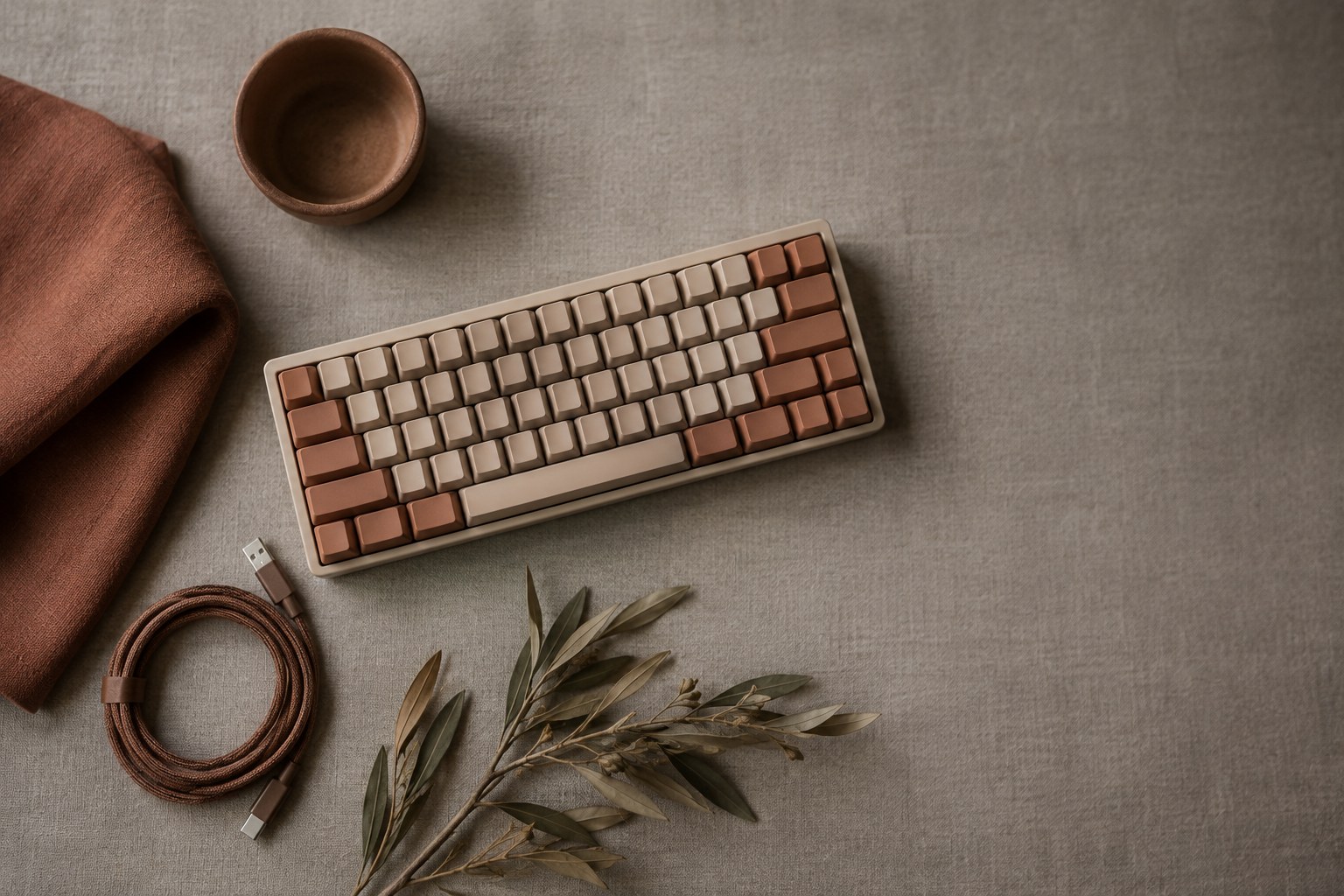
- 75%: function row, arrows and a few navigation keys in a tight block. A popular choice for designers because it keeps the keys you use and drops the rest.
If you like a numpad only occasionally, a compact keyboard plus a separate numpad you can move aside is a sensible middle ground.
Low-profile or mechanical: what the difference feels like
Most MacBook users are used to short, flat scissor keys. Switching to a tall mechanical keyboard can feel strange at first and may need a wrist rest. Low-profile mechanical keyboards sit between the two: thinner than classic mechanical boards, with more travel and feedback than a laptop keyboard.
Mechanical switches usually come in three types:
- Linear (often called "Red"): smooth, no bump. Quiet and fast.
- Tactile (often "Brown"): a small bump tells you the key registered. A good default for mixed typing and shortcuts.
- Clicky (often "Blue"): a bump plus an audible click. Satisfying, but not great on client calls or in shared studios.
If you are often on video calls, choose linear or tactile. Your microphone picks up more keyboard noise than you think.
Connectivity and switching between devices
Many designers work across a laptop, a desktop and an iPad. A keyboard that remembers several devices and switches with one key saves you from re-pairing. Look for three things:
- Multi-device pairing (most mid-range boards support three devices).
- A 2.4 GHz receiver or wired mode for the desktop you use most. Bluetooth works, but a receiver or cable is usually more stable and lower latency.
- USB-C charging, so you can share cables with the rest of your setup.
Battery life varies widely and depends mostly on backlighting. Backlit keyboards with lights on drain in days or weeks; with lights off, many last for months.
Mac support is more than key labels
If you work on a Mac, check that the keyboard has a proper Mac layout: Cmd and Option in the right places, and media keys for brightness, Mission Control and screenshots. Many keyboards ship with swappable Mac keycaps, but the function row behaviour matters too. Apple's own Magic Keyboard with Touch ID adds fingerprint unlock and password fill, which no third-party keyboard can offer, though it requires a Mac with Apple silicon.
Five keyboards worth looking at
Prices below are list prices on each brand's US store at the time of writing. Check for regional pricing and layouts before you buy.
- Logitech MX Keys S (US$129.99 list, US$119.99 on sale): full-size, low and quiet, with dished keys and smart backlighting. Pairs with up to three devices. The safe choice for writing-heavy work.
- Logitech MX Mechanical Mini (US$159.99): compact low-profile mechanical with a choice of tactile quiet, clicky or linear switches and three-device switching. Good if you want mechanical feel without a tall board.
- Keychron K3 Max (US$109.99): low-profile 75% board with 84 keys, Bluetooth 5.1 for up to three devices, a 2.4 GHz receiver and wired USB-C. Mac keycaps included, and keys can be remapped with QMK/VIA.
- NuPhy Air75 V3 (US$149.95): 75% low-profile mechanical with Gateron low-profile switches, gasket mount, a 4000 mAh battery and Mac media keys. A strong pick if you like a softer, cushioned feel.
- Apple Magic Keyboard with Touch ID and Numeric Keypad (US$179): the thinnest option here, with Touch ID and a numpad. No backlight, and only really worth it if you use a desktop Mac.
Set it up for your design tools
A new keyboard is a good moment to clean up your shortcuts. Spend twenty minutes on setup and it pays back within a week:
- Map rarely used keys to things you do often. On remappable boards (QMK/VIA, Logi Options+), turn a spare key into "Export selection" or a screenshot of a region.
- Keep your most-used Figma and Framer shortcuts on the left half of the keyboard, so your right hand never leaves the mouse.
- Turn backlighting down or off. You will rarely need it in daylight, and it is the biggest drain on battery.
- Raise or lower the feet based on your wrist angle, not habit. Flat is usually better for long sessions.
The right keyboard is the one you stop noticing. If you are still thinking about it after a week, something about its size, height or noise is wrong.
Conclusion
Start with how you work: shortcuts, writing or numbers. Choose the smallest layout that still has the keys you need, so your mouse stays close. Pick a quiet switch if you take calls, make sure Mac keys are handled properly, and spend a little time remapping keys for your design tools. You do not need an expensive board; you need one that fits your hands and your workflow.