Affinity is now free on iPad: what designers should know
Canva released Affinity for iPad on November 2: sketch, vector, photo and layout tools in one free app. Here is what is free, what is missing and who should try it.
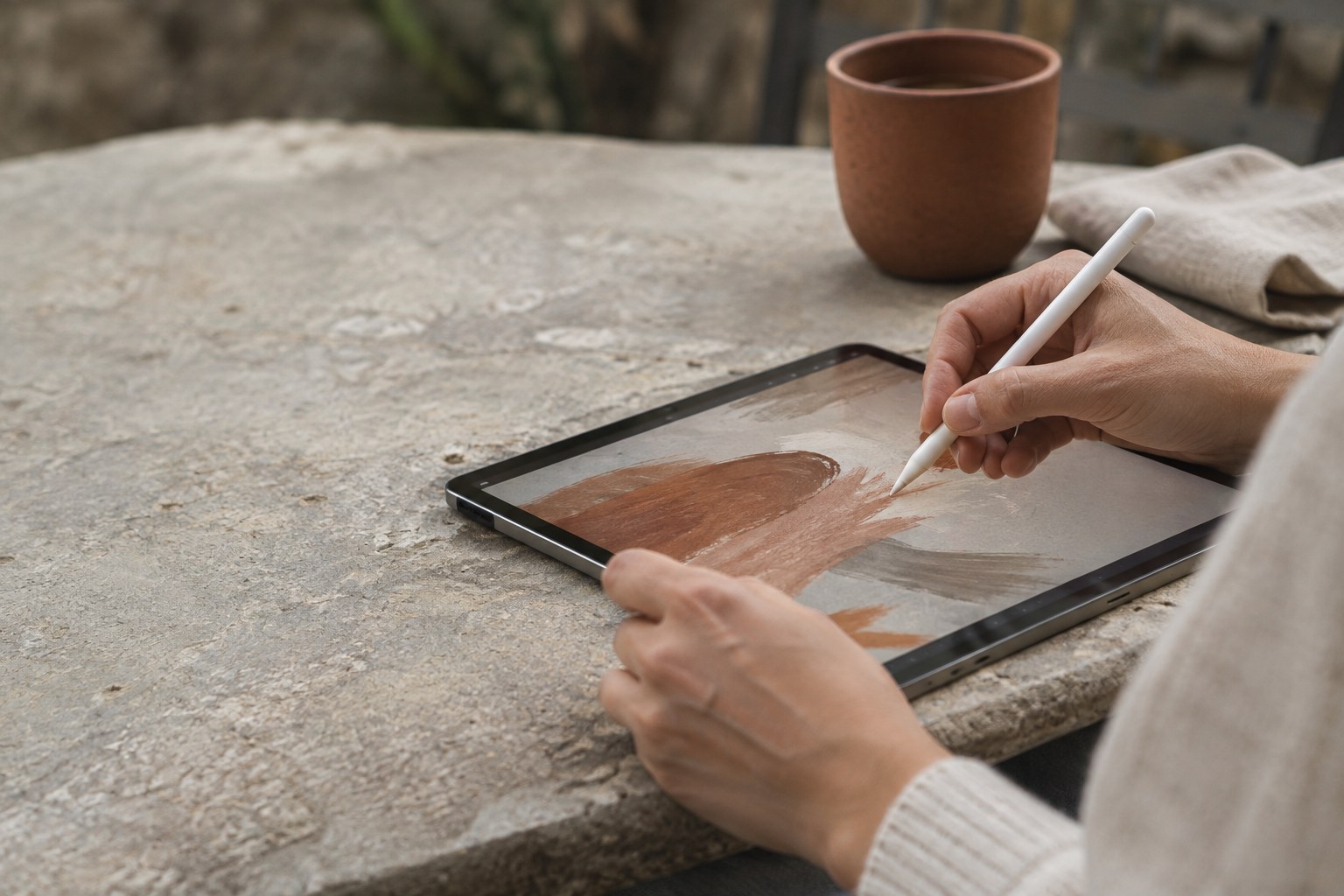
On November 2, Canva released Affinity for iPad: one app with sketching, vector, photo and layout tools, free for individuals. For a lot of designers, the iPad has been a drawing surface or a review screen, not a place where real files get finished. This release is a direct attempt to change that.
Below we go through what was actually announced, what is free and what is not, what is still missing, and how to decide whether it belongs in your workflow. We stick to what Canva and the launch coverage have confirmed, and we point out where details are still unclear.
What launched
Affinity for iPad is a single app that covers the work Affinity Designer, Affinity Photo and Affinity Publisher used to split between them. It follows the desktop change from about a year ago, when Affinity's vector, photo and layout tools were merged into one app on the Mac. According to 9to5Mac, the desktop version has passed seven million sign-ups since that relaunch.
The iPad app is organised into four studios:
- Sketch – a large brush library (Design Compass counts more than 350 editable brushes), with sketches kept live inside the file.
- Vector – nodes and curves, plus a Sketch to Shapes feature that turns hand-drawn forms into clean vector shapes.
- Photo (Pixel) – RAW correction, masks, compositing and non-destructive editing.
- Layout – multi-page documents with master pages, grids, text styles and automatic text flow, aimed at print-ready output.
You switch between studios inside one document, and a single file can hold multiple artboards.
What is free and what you pay for
The core app is a free download from the App Store, and individuals get the core tools and export with a free Canva account. That matches how Affinity on desktop is priced today.
The paid part is AI. Design Compass reports that Canva AI Studio requires a paid Canva plan. The AI features mentioned at launch include generative expand, upscaling, adding effects such as motion blur, and Decompose Layer, which splits a flat image into editable layers. Neither launch report spells out exactly which of these sit behind the paid plan, so check inside the app before you build a client workflow around any of them.
Short version: drawing, vector, photo, layout and export are free for individuals. AI tools are where the Canva subscription comes in.
Apple Pencil support is the real reason to try it
Most iPad design apps either draw well or handle production files well. Affinity is trying to do both in one document. With Apple Pencil Pro, the app supports pressure, tilt, barrel roll, squeeze and hover.
The practical benefit is the path from sketch to vector. You can rough out a logo mark or an icon by hand in the Sketch studio, run Sketch to Shapes, and clean up the nodes in the Vector studio without exporting anything or switching apps. For illustrators and brand designers who start on paper, that removes a step that usually involves a scanner or a photo and a manual trace.
What is missing at launch
This is a first release, and some desktop features are not there yet. Design Compass notes that data merge and macro recording are not in the launch version; Canva says it plans to add them later. If your work depends on either, for example generating dozens of name badges or batch-processing photos, keep that work on the desktop for now.
A few things were also not covered in the launch coverage we could verify:
- Minimum iPadOS version and the list of supported iPad models.
- Which import and export formats are supported beyond Affinity's own files (for example PSD).
- How deep any Canva integration goes inside the iPad app.
Check the official Affinity iPad page for these before you commit a project to the iPad.
Files move between iPad and desktop
The iPad app uses the same Affinity file format as desktop, so you can start a file on one device and finish it on the other. That is the detail that makes this useful for professional work. A realistic split looks like this:
- Sketch concepts and rough layouts on the iPad, away from your desk.
- Do vector clean-up and photo retouching on whichever device is in front of you.
- Finish print production, data merge and anything else that is desktop-only on the Mac.
Before you rely on this, test a round trip with a real client file: open it on the iPad, edit text, effects and linked images, save, and reopen on desktop. Look for missing fonts, changed effects and resized text frames. Ten minutes of testing beats discovering a problem the night before a deadline.
Who should try it now
Because the core app costs nothing, the barrier is just your time. It makes most sense for:
- Illustrators and brand designers who sketch by hand and want a direct route to clean vectors.
- Freelancers who travel and want to make real edits to client files without carrying a laptop.
- Small studios looking for a free alternative to subscription tools for print and layout work.
- Students who want professional-grade layout and photo tools without paying for them.
If you design mostly websites and product interfaces, this does not replace Figma or Framer. It is closer to what Illustrator, Photoshop and InDesign cover. Where it can help web designers is in preparing assets: retouching hero photos, drawing custom icons or illustrations, and producing print pieces when a client asks for them.
How to test it in one afternoon
Do not migrate your whole workflow at once. Pick one small, real task and run it end to end:
- Install the app and sign in with your Canva account.
- Sketch one icon or mark by hand and convert it with Sketch to Shapes.
- Retouch one product or portrait photo using non-destructive adjustments and masks.
- Lay out a one-page flyer using a master page and text styles.
- Export, then open the same file on desktop Affinity and check that nothing changed.
After that, you will know whether the iPad can take over part of your work, or whether it stays a sketching device.
A free, professional design suite on the iPad puts pressure on subscription pricing for print, illustration and photo work. Canva's model is clear: give away the professional tools and earn money on AI features and team plans. For individual designers, that is a good deal today. The thing to watch is how much of the useful AI functionality ends up behind the paid plan, and how quickly the missing desktop features arrive.
Conclusion
Affinity for iPad brings a serious, free design suite to the iPad: four studios, strong Apple Pencil support and files that move to desktop. It is not a full replacement for the desktop app yet, since data merge and macros are missing. Test it on one real task, check file round trips before using it on client work, and decide based on what you see, not on the launch announcement.