How to design empty states that get users to their first action
A practical guide to designing empty states with clear copy, one primary action and honest error handling, so new users know exactly what to do first.
The first screen most people see in a new product is not the dashboard from your Dribbble shot. It is an empty list, a blank canvas, or a table with zero rows. That moment decides whether someone takes their first real action or closes the tab and forgets your product exists.
Empty states are usually designed last, often by whoever has a spare hour before launch. In this article we will treat them as a core part of onboarding: what they need to say, how they should look, and how to test whether they work.
Know which empty state you are designing
Not every empty screen has the same job. Before you open your design tool, name the situation you are solving for. Most empty states fall into one of four types:
- First use: the user has never created anything. The goal is to get them to the first item.
- User cleared: they finished or deleted everything, like an empty inbox. The goal is closure, not a sales pitch.
- No results: a search or filter returned nothing. The goal is to help them adjust the query.
- Error or no access: data failed to load or they lack permission. The goal is to explain what happened and what to do next.
Mixing these up is the most common mistake. A cheerful "Create your first project!" on a filtered view that simply has no matches feels broken, because the user already has projects.
Write the copy before you draw anything
An empty state is mostly words. If the copy is weak, no illustration will save it. A useful structure has three parts:
- A headline that states the situation in plain language: "No invoices yet."
- One sentence of value that explains why this area matters: "Invoices you send will appear here, with their payment status."
- One clear action on a button that uses a verb and the object: "Create invoice."
Keep the headline short and factual. Avoid jokes unless your brand voice really supports them; a clever line can read as dismissive when someone is confused. Write the button label so it would still make sense out of context, for example in a screen reader's list of buttons.
Give one primary action, not a menu
It is tempting to show every way to get started: import, create from scratch, use a template, invite your team, watch a video. Five options on an empty screen produce hesitation, not choice.
Pick the single action that gets most new users to value fastest and make it the primary button. If there is a strong second path, such as importing existing data, show it as a secondary text link. Everything else can wait for later screens or a help article.
If you cannot decide which action is primary, that is a product question, not a design question. Ask what the most successful users did first.
Look at your analytics or talk to a few active customers. Very often the answer is "they started from a template" or "they imported a CSV," and that becomes your main call to action.
Show what the screen will look like when it is full
People struggle to imagine an empty area filled with their own content. You can lower that effort in a few ways:
- Use a muted preview of a populated state behind or below the message, clearly marked as an example.
- Offer sample data that the user can explore and delete with one click.
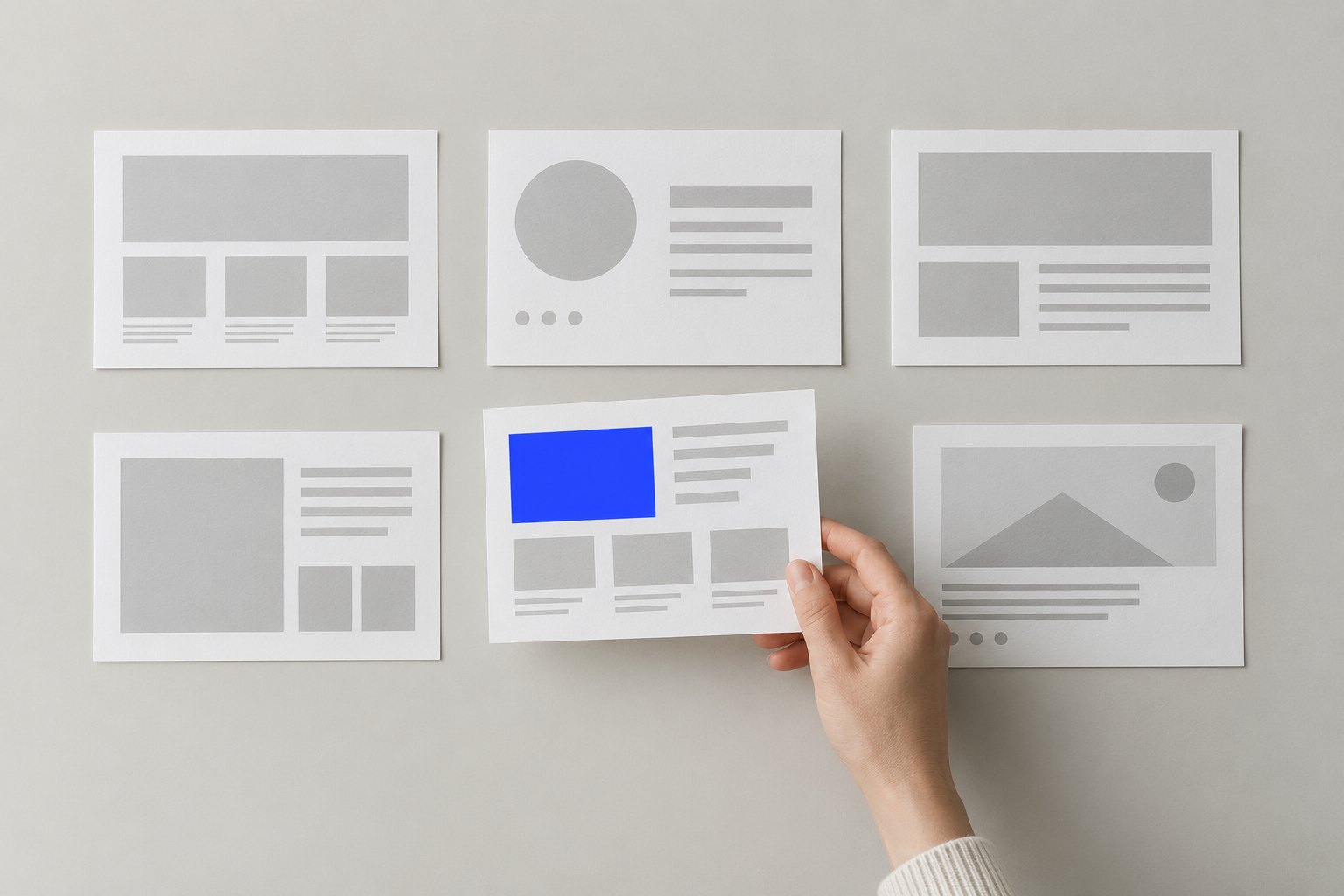
- Include a small, specific illustration that hints at the content type, such as cards for a board view or rows for a table.
Sample data is powerful but needs care. Label it clearly, keep it realistic, and make removing it obvious. If users have to hunt down and delete twenty fake records, you have created a new problem.
Keep illustrations quiet and consistent
Illustrations can add warmth, but they should support the message, not compete with it. A few rules we follow on client projects:
- Keep the illustration smaller than the text block on desktop, and consider hiding it on small screens.
- Use one illustration style across all empty states so the product feels coherent.
- Match the illustration to the situation: a calm, finished visual for "all done," a neutral one for "no results," never a celebratory one for an error.
- Do not put essential information inside the image. Anything important belongs in real text.
In Framer or Figma, build empty states as a component with variants for each type. That way the layout, spacing, and tone stay consistent, and you can swap copy and artwork per screen without redesigning from scratch.
Handle "no results" with helpful detail
Search and filter empty states deserve special attention because users arrive with intent. They are looking for something specific, and a vague "Nothing found" leaves them stuck.
Repeat the query back to them: "No results for 'brand guidelines'." Then offer concrete next steps, such as clearing filters, checking spelling, or searching in a wider scope. If you can, show the active filters as removable chips right in the empty state, so one click restores results.
For e-commerce or content sites, suggesting popular items or related categories can recover a session that would otherwise end. Just make sure suggestions are labeled, so users do not think the search actually matched them.
Make errors and permissions honest
When data fails to load, an empty state that looks like a first-use screen is misleading. The user might think their work was deleted. Be direct: say that something went wrong, whether their data is safe, and what they can do, such as retrying or contacting support.
For permission issues, tell people who can grant access and, where possible, add a "Request access" button. A dead end with "You don't have permission" and nothing else generates support tickets and frustration.
Test empty states like any other flow
Empty states are easy to skip in testing because your own account is full of data. Create a fresh test account for every major release and walk through the product as a new user. Then check a few things:
- Does every empty screen have a clear headline, explanation, and action?
- Do the actions lead somewhere useful, not to another empty screen?
- Does the layout hold up on mobile and with longer translated copy?
- Can a keyboard or screen reader user reach and understand the primary action?
If you have product analytics, track the click rate on each empty state's main button and the time to first created item. These two numbers tell you quickly whether a redesign helped.
Conclusion
Empty states are small screens with an outsized effect on activation. Name the situation, write the copy first, offer one clear action, and show people what success looks like. Build them as a consistent component and test them with a fresh account before every launch. The few hours this takes will pay back every time a new user lands on a blank screen and knows exactly what to do next.