Figma can now compare AI images from different models side by side
Figma's AI image tool now makes up to six variations or compares up to three models on one prompt. Here's how to use it without wasting credits.
Figma's AI image tool used to give you one result per prompt from one model. If the image was close but not right, you rewrote the prompt, switched models, and tried again, one image at a time. A November 18 update changes that: you can now generate several images at once and, more usefully, run the same prompt through different models and see the results next to each other.
This sounds like a small convenience, but it changes how you should work with AI imagery inside a design file. Below we cover what the update does, how to use it without burning through your AI credits, and where it fits next to Figma Weave, which already offered model comparison in a separate, node-based workspace.
What changed
According to Design Compass's write-up of the November 18 release, Figma added "the ability to create and compare multiple results at once" to its AI image generation and editing tools. There are now two ways to generate:
- Several images from one model. Pick a model and ask for 2, 4 or 6 variations of the same prompt.
- One image each from several models. Select up to three models, and each one generates a single image from the same prompt, so you can compare how they interpret it.
To add a model to the comparison, you press the plus button next to it on the model selection screen. The report lists GPT Image 2.5 Sunburst, NanoBanana 2 Lite and NanoBanana 2 among the models in Figma's credit guide for image generation and editing.
How the comparison works on the canvas
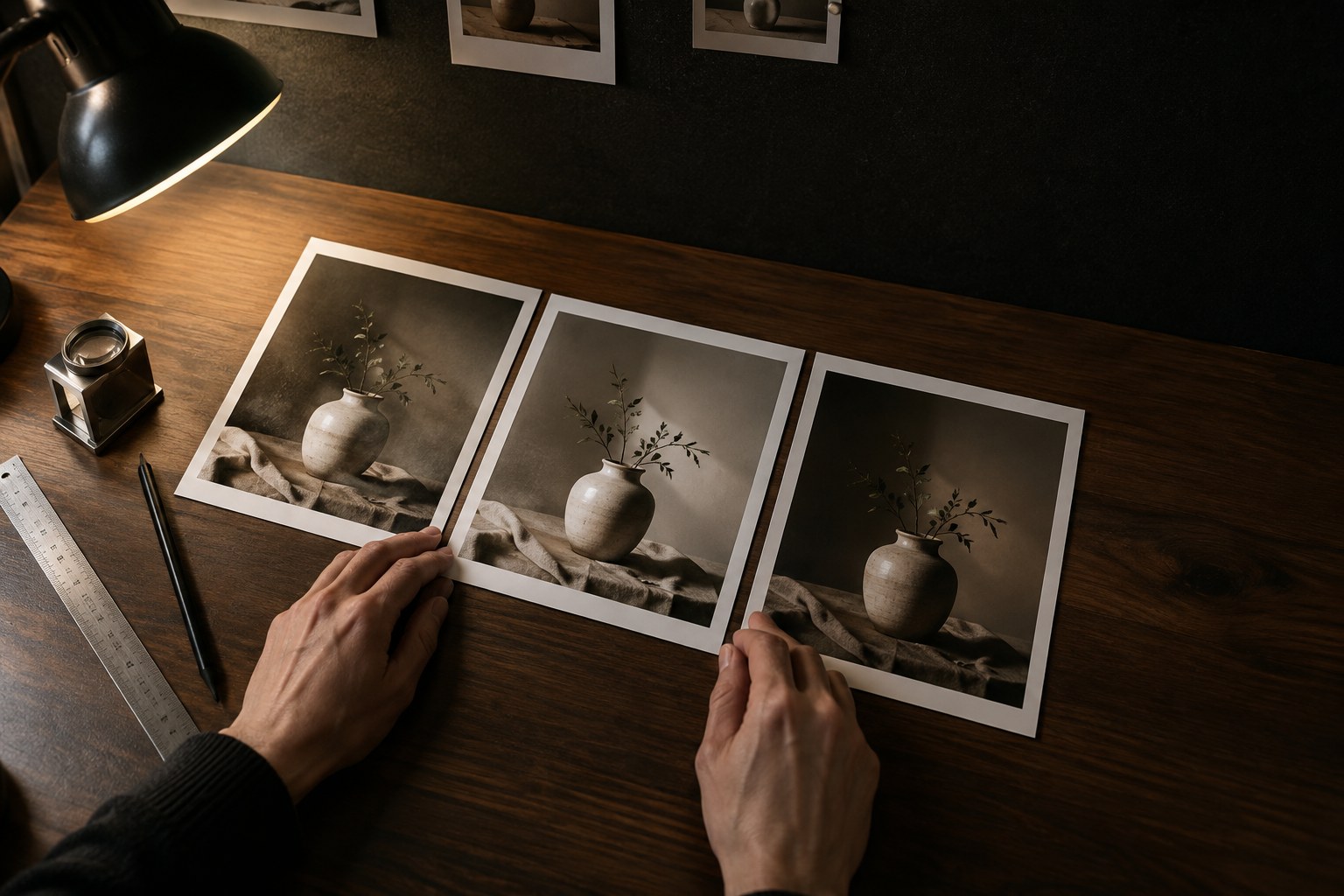
The most practical part of the update is that results are tied to what you are working on. When you hover over a candidate, Figma previews it applied to the existing layer, so you see the image inside your layout instead of judging it in isolation. If you want to look at everything properly, "Place all on canvas" drops every candidate onto the canvas so you can line them up, crop them, and compare at full size.
The same flow covers both tools: Make image creates a new image, and Edit image changes an existing one, including images already placed in your file. You can also attach reference images to show the direction you want. Figma's own help article on bringing imagery into your designs describes attaching one or more reference images through the plus button, and suggests swapping references or making small prompt edits and comparing the results.
Why comparing models matters
Different image models have different habits. One handles photographic light and texture well but drifts on composition. Another follows layout instructions closely but makes skin and fabric look plastic. Until now, finding out which model suited a brief meant running the prompt several times and keeping track of the results yourself.
Side-by-side generation turns that into a single step. For a hero image, a blog cover or a product mockup background, you can see in one pass which model is closest, then commit to it for the rest of the set. That also helps with consistency: once you know which model matches the art direction, you keep using it instead of mixing styles across a page.
Watch your credits
This is where the update needs some discipline. Design Compass notes that usage is deducted from credits shared with other Figma AI features, and that the cost depends on the model you pick and how many images you generate. Six variations cost more than one, and three models cost more than one model. Figma's AI credits are already a real line item for many teams, so treat multi-generation as a deliberate choice, not a default.
A sensible routine:
- Compare models once per project. Run a three-model comparison on a representative prompt at the start, pick the winner, and switch to single-model generation for the rest.
- Ask for 2 variations, not 6. Two options are usually enough to see whether the prompt works. Go to 4 or 6 only when the direction is right and you are choosing details.
- Fix the prompt before multiplying it. If all results miss the same thing, more images will not help. Rewrite the prompt or add a reference image first.
- Use Edit image for small fixes. Changing one element of a good image is cheaper and faster than regenerating the whole thing.
Who can use it
Per the same report, the AI image tool is available on all plans but needs file editing permissions. On the Starter plan it works only in Figma Design. If someone on your team cannot see the tool, check their seat and permissions before assuming the feature has not reached your account yet.
How this relates to Figma Weave
Figma already had a more advanced way to compare models. Figma Weave lets you build node-based pipelines that run the same prompt through models from different providers and compare outputs on one canvas, and it can repeat that comparison across many inputs. Weave also includes masking, colour grading and compositing.
The new update brings a lighter version of that idea into the regular design file. A simple way to split the work:
- Use the built-in tool for one-off images inside a layout: a hero photo, a placeholder product shot, an illustration for an empty state.
- Use Weave when you need a repeatable process: the same treatment across dozens of product images, or a pipeline a teammate can reuse.
What to do this week
Pick one real image you need for a current project and run it through three models. You will learn more about which model fits your style from that one test than from any benchmark.
After that, note the winning model and the prompt structure in your project file, so the rest of the team does not repeat the comparison. If you work with clients, a three-model comparison is also a quick way to show image directions early, before anyone commits to a full art direction.
The short version
Figma's AI image tool now generates 2, 4 or 6 variations, or one image each from up to three models, and previews them in place on your layer. It saves time when you are choosing a direction, and it can waste credits if you use it on every prompt. Compare models once, settle on one, and keep the multi-image options for the moments when you are choosing between good options rather than fixing a weak prompt.